Over the past six months, I have collected your top tech questions! I’ll be sharing answers to the top 5 questions here on my blog. First-up, the most popular topic: How do I get QR codes to work?
You have likely noticed those small black-and-white squares on event posters, restaurant menus, or even at your doctor’s office. Short for "Quick Response," a QR code acts as a visual shortcut to a website, document, or guide.
Instead of typing a long web address, you simply point your smartphone camera at the square to open the page automatically. Here is a quick guide, along with a few helpful tips, for scanning QR codes when you are out and about.
Steps to Scan a QR Code:
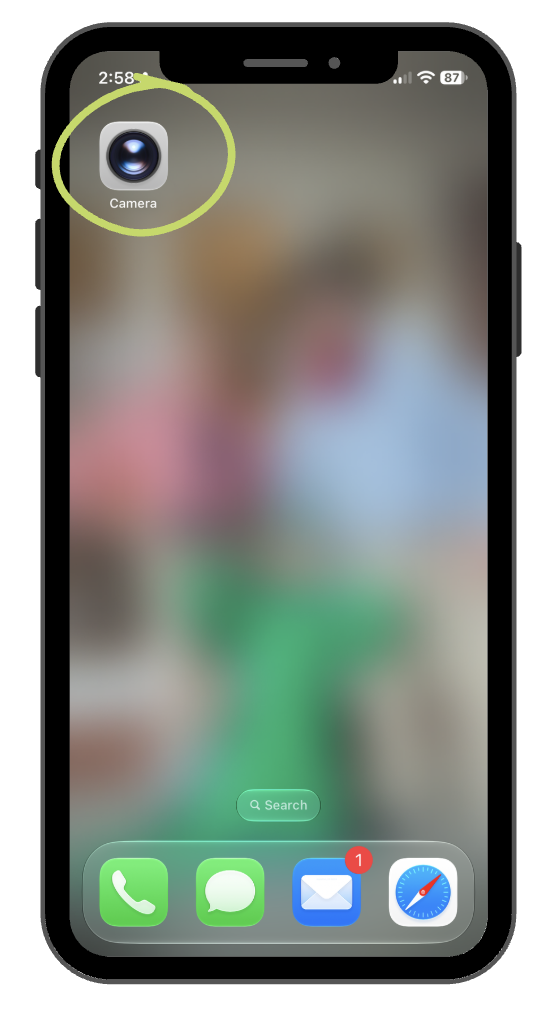
Open the Camera: Tap the Camera icon on your device's home screen.
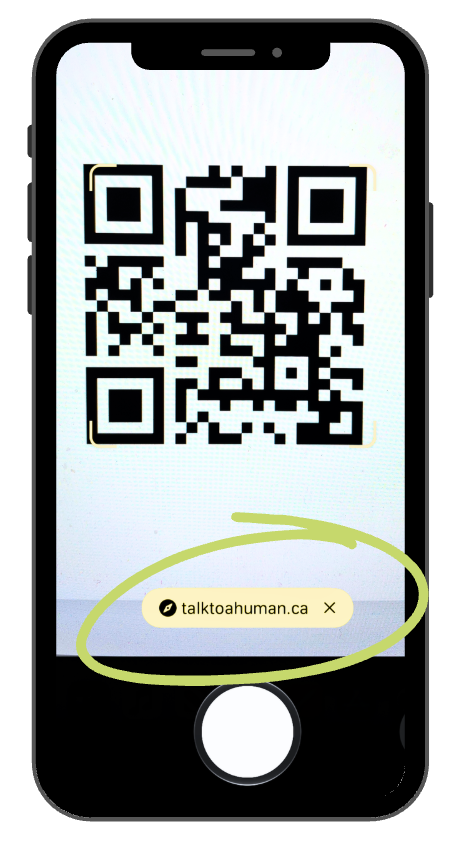
Aim at the Code: Point camera at the black-and-white square, as if taking a photo of it. Hold still and don't press any buttons; a coloured frame or box will appear around the code.
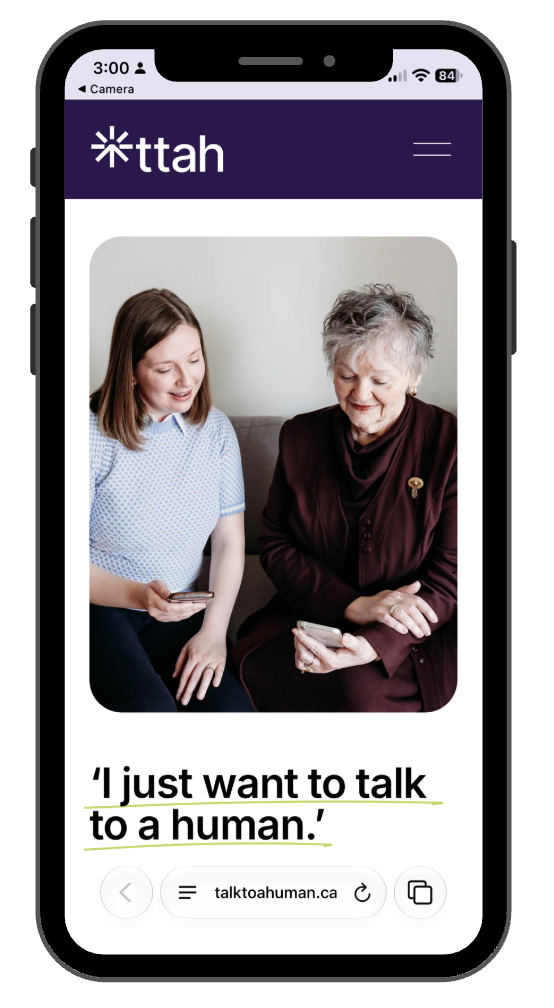
Review & Open Link: Look for a small yellow or white banner popping up on your screen with a web address. Make sure it matches the organization you expect. Tap it once to go straight to the website.
Nothing happening? Tips to resolve:
Distance: Hold the phone about 6 to 12 inches away. Too close makes the image blurry and too far away makes the square difficult to scan.
Glare and lighting: Tilt your phone slightly if overhead lights are shining off a glossy menu, flyer, or screen, and make sure the area is well lit.
A quick wipe: Gently clean your camera lens with a soft cloth if the picture looks hazy.
Do not press the photo button: You do not need to take a picture; just hold the camera steady until the link appears on your screen.
What codes are safe to scan?
Treat a QR code the same way you treat a link in an email or text message: only scan codes from trusted sources, such as your doctor’s office, a restaurant menu, or an official brochure.
Be cautious with random stickers on lampposts or codes pasted loosely over a public sign, parking meter, or poster; scammers sometimes place fake stickers over legitimate ones to send you to an untrustworthy website. When the web address pops up on your camera screen, take a quick look at the website name before tapping it to make sure it matches the business or organization you expect.
Do I need to buy or download a special app?
No. Most iPhones, iPads, and Android devices made in the last several years already have a scanner built right into your regular Camera app. Just open the camera and point it at the square. There is no need to download anything extra or pay for a separate QR scanner app.
Stay tuned!
A huge thank-you to everyone who joined my workshops and dropped notes into the “Tech Questions” jar at events this fall. Your curiosity and real-world questions are directly shaping this series. Stay tuned for the next one!